Create your first invitation
An invitation in kutsu is one page your guests open from a link - no app, no account on their side. This walks you from an empty dashboard to something you can send.
Start a new invitation
From your dashboard, choose New invitation and pick the design to start from - or start with the details and choose a design later, which starts you on a default design you can swap at the Design step. kutsu creates a draft - a placeholder name and a date about a month out - and opens the editor. Nothing is public yet, and every detail is editable.
The editor is a list of steps down the left-hand side:
- Event infoThe event's name, who is hosting it, the date, time and location. This is the single source of truth - change something here and it updates everywhere it appears.
- DesignPick a template and make it yours. See Choosing a template.
- RSVP settingsWhat you ask guests, and when responses close.
- Invite listThe people you want there, if you plan to email them.
- EmailsWhat lands in their inbox, and when.
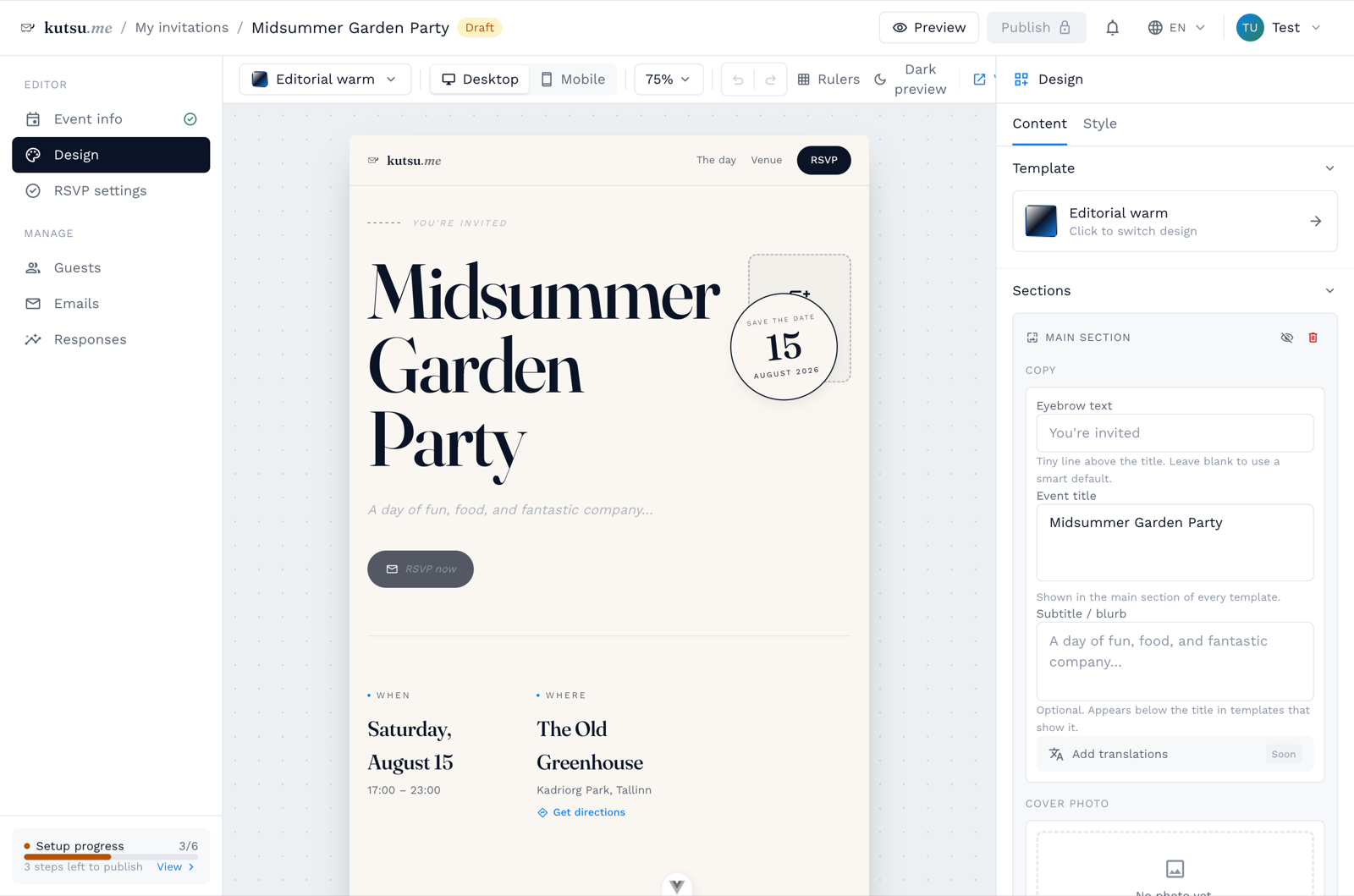
Fill in the details
The event name on Event info is the invitation's title, and guests see it: it is the headline of the invitation, the subject of its emails and the title of a shared link's preview. It is also how you find the event on your dashboard. On the Design step you can click the headline and reword it in place - it is the same text, so a change in either place shows in both.
Hosted by, just below it, is the name the invitation is signed with: the "Hosted by" line on the design and the sender of its emails. Left empty, it is your account name. If you are planning for someone else, put their name there, and each event can have its own.
- Date & time - drives the countdown, the calendar button and any reminders.
- Location - pick the venue from the address suggestions and a map appears on the invitation.
- RSVP deadline - after this date the response form closes politely.
Each step has a save bar that lights up when you have unsaved changes, and kutsu asks before you leave a step with edits still pending.
Preview and publish
Use Preview at the top right to see exactly what guests will see - the real page, not a mockup. When it looks right, Publish makes the link live.
Publishing notifies nobody on its own. Sending is a separate, deliberate step, so you can publish early and share when you are ready.
What happens next
Replies land under Responses as they arrive. You can keep editing a published invitation at any time - guests always see the current version.